
 Saiteja
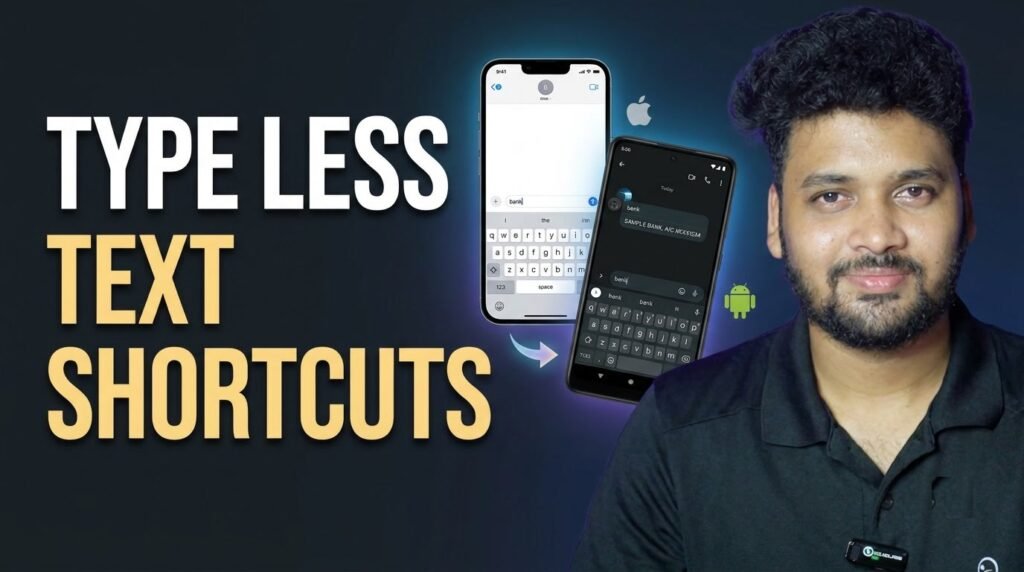
Tired of typing your bank details, address or ID numbers again and again? Your phone’s keyboard can do it for you. With a text shortcut, you type a short word like bank, and your full saved text appears automatically. Here is the complete step-by-step process for iPhone (Text Replacement) and Android (Gboard personal dictionary).
Table of Contents
Quick Overview
| Phone | Where to set it | How it works |
|---|---|---|
| iPhone | Settings → General → Keyboard → Text Replacement | Type the shortcut and the phrase appears in the suggestion bar; tap it or press space |
| Android (Gboard) | Gboard settings → Dictionary → Personal dictionary → English (US) | Type the shortcut and the saved word appears as a suggestion; tap it |
| Cost | Free, built into the keyboard | |
What Is a Keyboard Text Shortcut?
A text shortcut links a short word to a longer phrase. For example, you save the phrase “SBI Bank, A/C: XXXX XXXX 4521, IFSC: SBIN00XXXXX” with the shortcut bank. Next time you type bank in WhatsApp, Gmail or any app, the keyboard offers the full text. You can do the same for your address, PAN, email signature or any text you type often.
iPhone: How to Set Up Text Replacement
Step 1: Open Settings
Open the Settings app on your iPhone and tap General.
Step 2: Go to Keyboard
Scroll down and tap Keyboard. (You can also search “Keyboard” in the Settings search bar.)
Step 3: Tap Text Replacement
Tap Text Replacement. You will see the default “omw → On my way!” example.
Step 4: Tap the + Icon
Tap the + icon at the top-right corner.
Step 5: Enter the Phrase and Shortcut
In Phrase, type the full text you want (for example your bank details or address). In Shortcut, type a short word you will remember, like bank, addr or pan.

Step 6: Tap Save
Tap Save. That’s it. Your shortcut works in every app that uses the iPhone keyboard.
Android: How to Add a Shortcut in Gboard
Most Android phones use Gboard, and it is the best option for this. If your phone uses a different keyboard, install Gboard from Google Play and set it as your default keyboard.
Step 1: Open Gboard Settings
Open any chat, bring up the keyboard and tap the settings (gear) icon. Or go to phone Settings → System → Keyboard → On-screen keyboard → Gboard (the exact path can differ slightly by brand).
Step 2: Open Dictionary
In Gboard settings, tap Dictionary, then Personal dictionary.
Step 3: Select English (US)
Choose your keyboard language, for example English (US).
Step 4: Tap + and Add the Word and Shortcut
Tap +. In Type a word, enter the full text. In Shortcut, enter the short word, like address or bank. Go back and it is saved automatically.
How to Use It in WhatsApp and Other Apps
Open WhatsApp (or Gmail, Messages, any form) and type your shortcut, for example bank. The saved text appears in the suggestion bar above the keyboard. Tap it, and the full text is entered in one go.

Watch the Video
Important Safety Tips
- Do not save passwords, UPI PINs, card numbers, CVV or OTPs as shortcuts
- For Aadhaar and bank account numbers, prefer saving a partial or masked number
- iPhone text replacements sync through iCloud, and Gboard’s personal dictionary can sync with your Google account, so keep those accounts secure
- Always keep a screen lock on your phone, because anyone who can use your keyboard can expand the shortcut
Frequently Asked Questions
Does this work in WhatsApp?
Yes. It works in any app where you type with the phone’s keyboard, including WhatsApp, Gmail and SMS.
Can I add multiple shortcuts?
Yes. Add one entry for each phrase, for example bank, addr, pan and mail.
My Android phone does not use Gboard. What now?
Samsung Keyboard has a similar Text shortcuts option in its settings. Or install Gboard and switch to it.
Related Guides
- 3 Useful Android Apps for Daily Life: ToolBox, Pinnit and Kyng Keyboard
- SSC Memo Download on WhatsApp
Conclusion
Text shortcuts save you from typing the same long details again and again. Set them up once on your iPhone or Gboard, and type one short word whenever you need your bank details or address. Share this trick with friends and family, because most people don’t know about it.
Disclaimer: Menu names can vary slightly by iOS version, phone brand and keyboard version. Avoid saving sensitive financial information in full.