How to Make the Viral Car-Swap Video Using Gemini or Google Flow
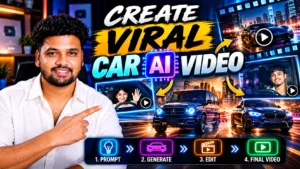
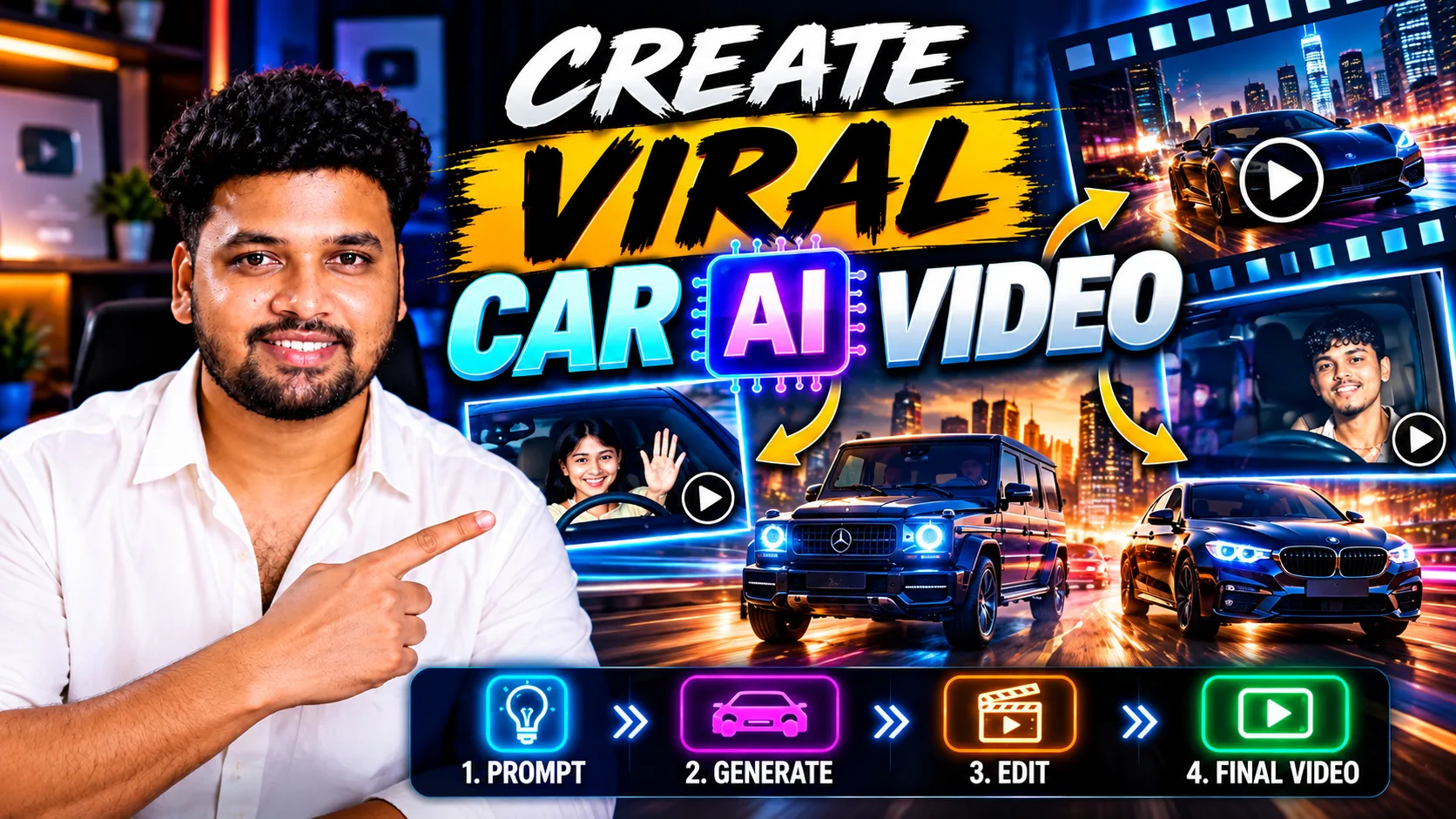
Create Viral AI Car Video If you’ve recently been scrolling through Instagram Reels or other social media platforms, you may have noticed a trending AI video effect where the original driver of a car is replaced with another person while everything else in the video remains almost exactly the same.
The car stays the same. The interior stays the same. The camera angle, driving motion, lighting, reflections, and overall cinematic feel are preserved — but the person sitting in the driver’s seat changes.
The interesting part is that you don’t need professional video-editing skills to try this effect. With a reference car video, a clear photo of yourself, and an AI tool such as Gemini or Google Flow, you can attempt to recreate the viral car-swap effect.
In this guide, I’ll explain the complete process step by step.
What Is the Viral Car-Swap Video?
The viral car-swap trend is essentially an AI-powered reference-video transformation.
Instead of creating an entirely new car video from scratch, you provide AI with an existing reference video. You then upload a clear photo of the person you want to appear in the driver’s seat.
The goal is to replace only the driver while preserving the important characteristics of the original video.
That includes things such as:
- The same car
- The same car interior
- The same steering wheel
- The same camera position
- Similar body position
- Driving movement
- Camera movement
- Lighting and shadows
- Reflections
- Timing
- Overall visual style
This is what makes the result look much more convincing than simply generating a random AI video of someone driving a car.
What You Need Before Starting
You only need a few things to try this tutorial.
First, you need the original/reference car video that contains the driving scene you want to recreate.
Second, you need a clear photo of yourself or the person you have permission to depict. For better results, use a well-lit image where the face is clearly visible. A front-facing photo generally gives the AI more facial information to work with.
Finally, you need access to Gemini or Google Flow with video-generation/reference capabilities available to your account.
Once you have these ready, you can start creating the video.
Step 1: Get the Reference Car Video
The first and most important step is getting the original car video used for the effect.
Go to the tezz.ai broadcast channel and find the original reference car video. Download the car video to your phone or computer.
If the creator is distributing the video through Instagram comments or DMs, follow the instructions given on the post. For example, you may be asked to follow the page first and then comment “car” on the relevant post to receive the reference material.
Once downloaded, keep the video in an easily accessible folder because you’ll need to upload it to the AI tool in the next step.
There are two reference video links provided in the original guide, so you can use the appropriate car video for the effect you want to create.
Step 2: Open Gemini or Google Flow
Next, open Gemini or Google Flow on your phone or computer.
You will need to provide two reference files:
1. Your photo — This tells the AI which person should appear as the driver.
2. The reference car video — This tells the AI how the final video should look and move.
Upload a clear image of yourself along with the car video you downloaded in Step 1.
Your photo quality can have a major impact on the final result. Avoid heavily blurred photos, images where the face is extremely small, or photos where important facial features are hidden.
A clear, well-lit, front-facing photo is usually the safest option.
Step 3: Paste the Special Car-Swap Prompt
After uploading your image and the reference video, you need to tell the AI exactly what should change and, equally importantly, what should remain unchanged.
Copy and paste the following prompt along with your uploaded image and video:
Replace the driver in the reference video with the person from my uploaded reference image. The uploaded person should naturally occupy exactly the same position and posture as the original driver. Keep everything else exactly unchanged: the same car, interior, steering wheel, road, location, background, lighting, camera angle, camera movement, driving motion, timing, reflections, shadows, and overall visual style.
Another Prompt
Task: 1:1 in-place subject replacement.Background & Camera Lock: The reference video is the master plate. Do not change, invent,or drift any camera angles, paths, timing, transitions, speed ramping, or car details. Every frameoutside the driver must remain identical to the original video.Action & Choreography Lock: The driver’s body posture, steering gestures, head rotation, eyedirection, and expressions must track the video’s original driver 1:1 frame-by-frame.Identity & Outfit Transfer: Replace the driver entirely with the person in the uploaded image.Accurately replicate their exact face, facial features, hair, skin texture, and their exact outfitand clothing visible in the reference image.Integration: Seamless real-camera optical compositing with matching cabin lighting andwindshield reflections.
The key part of this prompt is that it specifically asks the AI to change the driver while preserving the rest of the reference video.
Without clear instructions, an AI video generator may reinterpret the entire scene. It could change the car model, interior, road, lighting, camera movement, or other details.
By explicitly asking it to keep those elements unchanged, you give the model a clearer target.
Step 4: Generate the Video
Once you have uploaded both files and added the prompt, check everything once before generating.
Make sure your reference image is clear and that you have selected the correct car video.
Now click Generate.
The AI will analyze your reference photo and the original video and attempt to create a new version where you appear in place of the original driver.
Generation time can vary depending on the AI model, your account access, server demand, video duration, and the specific generation features available at that time.
When the generation is finished, watch the complete video carefully.
Pay particular attention to the face, hands, body position, steering wheel interaction, reflections, lighting, and movement. AI-generated video can occasionally introduce visual inconsistencies, so generating another version may give you a better result.
How to Get Better Car-Swap Results
The quality of your input files matters.
For your reference photo, try to use a natural-looking image with good lighting. Your face should be sharp and unobstructed. A front-facing image is particularly useful because the AI can clearly understand facial structure and appearance.
The reference video is equally important. Starting with a clear, high-quality video gives the AI better visual information about the car, driver position, environment, and movement.

You should also avoid unnecessarily changing the prompt.
The purpose of this particular prompt is to tell the AI that the driver is the variable while the reference scene should remain consistent.
If you add instructions for a different car, new location, completely different lighting, additional camera movements, or major clothing changes, the generated result may move further away from the original viral effect.
Why Does the Reference Video Matter?
A normal text-to-video prompt might say something like “create a cinematic video of me driving a luxury car.”
That leaves many decisions to the AI.
It has to decide what the car looks like, what the interior looks like, where the camera is positioned, how the person moves, what the road looks like, and how the scene is lit.
A reference video gives the model much more visual guidance.
Instead of inventing every element from scratch, the goal is to follow the visual structure of an existing clip and replace the driver with the person shown in your uploaded image.
That is why the reference video is the most important part of this workflow.
Step 5: Get the Video and Prompt Through DM
If you don’t want to manually follow all the steps or search for the reference material, the original tezz.ai guide also provides a simple Instagram method.
Follow the page first and then comment “car” on the relevant post.
The reference video and prompt can then be sent to your DM according to the instructions provided by the creator.
Make sure you follow the page before commenting if that is required for the automated DM to work.
Final Thoughts
The viral car-swap video is a good example of how reference-based AI video generation can simplify effects that would otherwise require significantly more manual editing.
The complete workflow is straightforward: get the reference car video, open Gemini or Google Flow, upload a clear photo of yourself together with the reference video, paste the special replacement prompt, and generate the result.
For the best output, remember one simple rule: use a clear, well-lit, front-facing photo and a high-quality reference video.
AI video tools and their available features can change over time, so the exact buttons or generation options you see in Gemini or Google Flow may differ depending on your account and when you try the process.
With the right reference files and prompt, you can experiment with this viral car-swap format without needing traditional frame-by-frame video editing skills.