 Saiteja
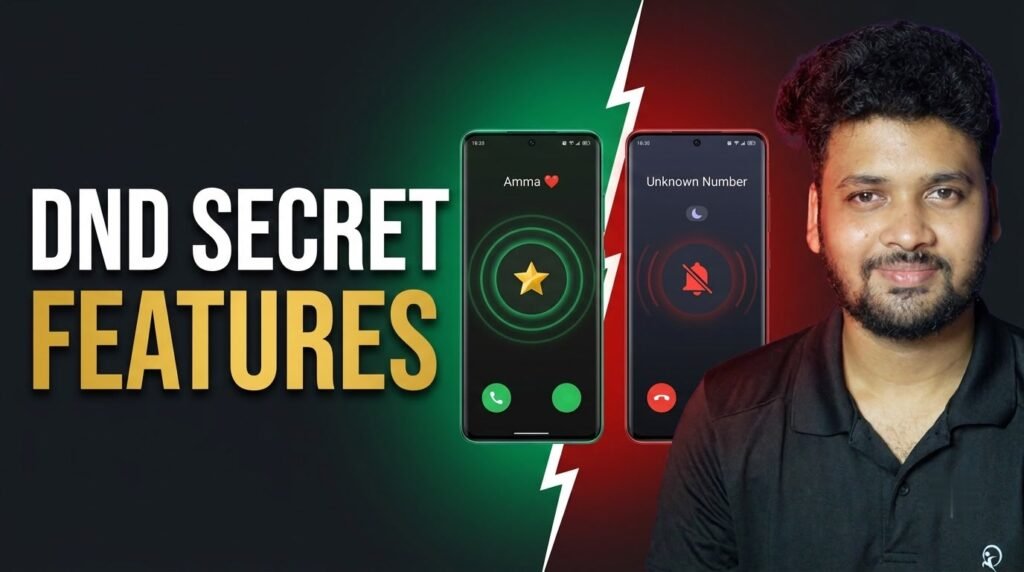
Your phone’s Do Not Disturb (DND) mode does much more than mute everything. With a few settings you can silence unknown callers, let only your family ring through, make sure an emergency call never gets missed, and turn DND on automatically at night or when you reach a place. Here is the complete step-by-step guide for Android.
Table of Contents
Quick Overview
| Feature | Where to find it | What it does |
|---|---|---|
| Calls from contacts only | DND → Calls → Contacts | Saved contacts ring, unknown numbers stay silent |
| Favourites only | DND → Calls → Starred contacts | Only starred people (for example Amma, Nanna) can ring |
| Repeated calls | DND → Calls → Allow repeated calls | A second call from the same person within 15 minutes rings normally |
| Apps | DND → Apps | Choose which apps can still notify you |
| Schedule | DND → Schedule → Add | Turn DND on automatically by time (and by place on phones that support it) |
Step 1: Open Do Not Disturb Settings
Swipe down twice from the top of the screen to open the Quick Settings panel. Long press the Do Not Disturb tile and its settings page opens. You can also go to Settings → Sound (or Notifications) → Do Not Disturb.
Step 2: Silence Unknown Calls (Contacts Only)
Tap Calls (on some phones this is under People). Under Calls allowed to interrupt, choose Contacts. Now, while DND is on, only numbers saved in your contacts will ring. Calls from unknown numbers stay silent.
Step 3: Let Only Your Favourites Ring
If you want only a few important people to reach you, choose Starred contacts instead. Everyone else, even saved contacts, is silenced.
To add someone to your favourites, open the Contacts app, open the person (for example Amma or Nanna) and tap the ☆ star icon at the top. The star turns solid and that contact can now ring during DND.

Step 4: Turn On Allow Repeated Calls (For Emergencies)
On the same Calls page, switch on Allow repeated calls. If the same person calls you again within 15 minutes, the second call rings normally. That way a genuine emergency is never missed, even from a number that is otherwise silenced.
Step 5: Choose Which Apps Can Notify You
Go back and tap Apps. Turn on only the apps you really need, such as WhatsApp, Phone or your payment app. All other app notifications stay silent while DND is on.
Step 6: Customise Lock Screen and Home Screen
On phones with Modes (for example Samsung’s Modes and Routines), you can pick a separate lock screen wallpaper and the home screen pages to show while DND is on. These changes apply automatically whenever DND turns on.
Step 7: Schedule DND by Time or Location
Under Schedule, tap Add and choose Time. Set a Start time (for example 10:00 PM), an End time (7:00 AM) and the days. DND then turns on and off by itself every day.
Some phones also let you turn DND on by location through Modes or Routines: DND switches on when you reach a place such as your office and switches off again when you leave.

Watch the Video
Useful Tips
- Keep Alarms allowed under Alarms & others so your morning alarm still rings
- Star the numbers of family members and close friends before you switch to Starred contacts
- Leave Allow repeated calls on so emergency calls get through
- Menu names can differ slightly by phone brand and Android version, but the options are usually under Sound or Notifications
Frequently Asked Questions
Will my alarm ring during DND?
Yes, alarms are allowed by default. Check Alarms & others in the DND settings to be sure.
Do silenced callers know they were silenced?
No. The call still reaches your phone and shows in your call log; your phone simply does not ring.
Does this work on iPhone?
Yes. On iPhone the same options are in Settings → Focus → Do Not Disturb → People, and repeated calls ring if the same person calls again within three minutes.
Related Guides
Conclusion
Do Not Disturb is one of the most useful settings on your phone once you set it up properly. Silence unknown callers, let your family through, keep repeated calls on for emergencies and schedule it for the night. Share this guide with friends and family so they can use it too.