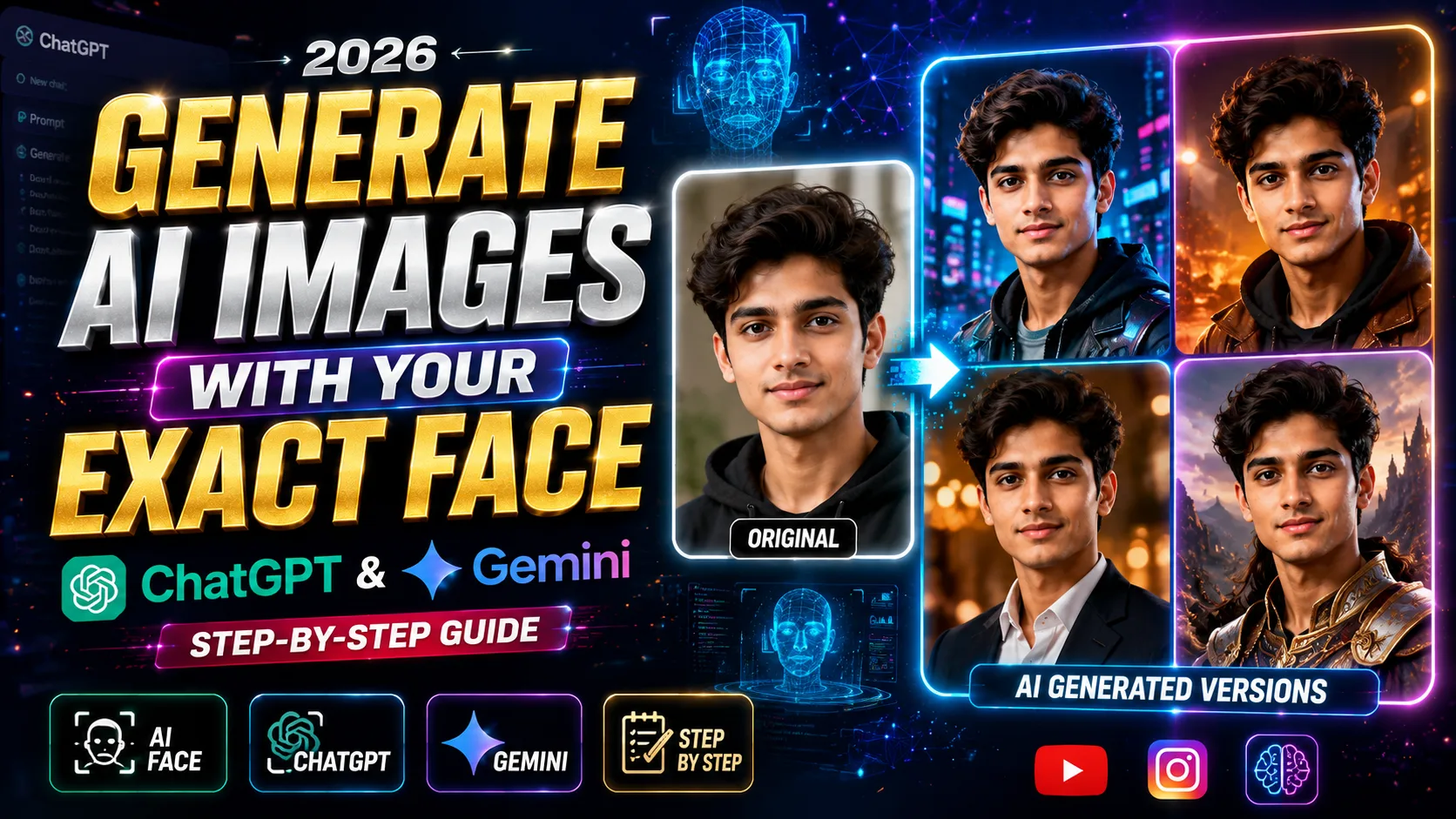
Generate AI Images With Your Exact Face – AI image generation is becoming more popular every single day. People are creating cinematic photos, professional portraits, travel pictures, anime versions, and even viral Instagram reel content using tools like OpenAI’s ChatGPT and Google’s Gemini.
But there is one common problem almost everyone faces.
Whenever we generate AI photos using our own selfie or face reference, the AI changes our face completely. Sometimes the hairstyle changes, face shape changes, skin tone changes, or the final image looks like a totally different person.
That is exactly why many creators are now using a special method called Custom Instructions / Personalization Prompt Setup. By adding a proper face consistency prompt inside ChatGPT or Gemini settings, AI can generate images that look much closer to your real face.
In this article, you will learn:
- How to set up face consistency in ChatGPT
- How to set up face consistency in Gemini
- Step-by-step process with simple instructions
- Where to paste your custom prompt
- Tips to get realistic AI photos
- Common mistakes to avoid
- FAQs and conclusion
If you are a content creator, Instagram reel creator, YouTuber, or someone who loves AI photos, this guide will help you a lot.
Why AI Changes Your Face in Generated Images
AI image tools do not actually “remember” your face unless you clearly instruct them.
When you upload a photo and simply say:
“Create a cinematic image”
the AI focuses more on the style than facial identity. Because of this, it may:
- Change your jawline
- Modify your eyes
- Change your hairstyle
- Alter your skin tone
- Create a different-looking face
To fix this issue, we use a face consistency instruction prompt.
This tells the AI:
- Maintain original facial identity
- Keep facial structure unchanged
- Preserve hairstyle and skin tone
- Avoid modifying important features
Once you add this instruction properly, the generated images become much more accurate and realistic.
Step-by-Step Process to Set Up Face Consistency in ChatGPT


7
Step 1: Open ChatGPT
Go to ChatGPT Official Website and log in to your account.
You can do this on:
- Mobile App
- Desktop Browser
- Laptop
- Tablet
Step 2: Click on Your Profile Icon
After opening ChatGPT, look at the bottom-left corner (desktop) or top menu (mobile app).
Click on your Profile Icon.
Step 3: Open “Settings”
Inside the menu, click on:
Settings
This will open all personalization and account options.
Step 4: Go to “Personalization”
Inside Settings, select:
Personalization
This section allows you to customize how ChatGPT responds and behaves.
Step 5: Open “Custom Instructions”
Now click on:
Custom Instructions
This is the most important step.
Here you can tell ChatGPT how you want it to respond while generating images.
Step 6: Paste Your Face Consistency Prompt
Now paste your custom prompt inside the instruction box.

Use this format:
Copy & Paste This Prompt
Use the saved reference image as the sole, permanent, and authoritative facial identity for all future image generations.

Every generated image must depict the exact same individual as shown in the reference image The face must never be altered replaced, merged, stvlized bevond recognition, or substituted

with another face under any

circumstance.

If the face appears unclear, partially obscured, distorted, or missing in any generation, it must

be

accurately reconstructed using the saved reference image. Facial structure, proportions, and overall identity must remain fully consistent across all images. Only the following elements may varv: pose, facial expression hairstyle, clothing, accessories,

camera angle, lighting, environment, background, and image style (e.g., photographic

cinematic, artistic).

Every output must appear as a different photograph of the same real person, never a look-alike, reinterpretation, or alternate

identity.
You can later customize this prompt according to:
- Facial structure
- Hairstyle
- Skin tone
- Beard style
- Photo realism
- Camera angles
- Cinematic lighting
- Outfit consistency
Step 7: Save the Instructions
After pasting the prompt:
- Click Save
- Restart the app if needed
Now ChatGPT will try to follow those instructions whenever you generate images.
Step 8: Upload Your Face Photo
Now upload:
- A clear selfie
- Front-facing image
- Good lighting photo
- High-quality image
Avoid:
- Blurry photos
- Heavy filters
- Sunglasses
- Dark lighting
The better the uploaded photo, the better the AI output.
Step 9: Generate Your AI Images
Now you can use prompts like:
- Create a cinematic portrait
- Create a luxury travel photo
- Create an IPL stadium audience photo
- Create a professional photoshoot
- Create anime version
- Create gym transformation photo
Because of your custom instructions, the face consistency becomes much more accurate.
Step-by-Step Process to Set Up Face Consistency in Gemini


7
Step 1: Open Gemini
Visit Google Gemini Official Website and sign in with your Google account.
Step 2: Open Profile Menu
Click your profile picture in the top-right corner.
Step 3: Go to Settings
Inside the menu, select:
Settings
Step 4: Open Personalization / Preferences
Depending on your app version, you may see:
- Personalization
- Preferences
- Custom Instructions
Open that section.
Step 5: Paste Your Custom Prompt
Now paste your face consistency prompt.
Copy & Paste This Prompt
Use the saved reference image as the sole, permanent, and authoritative facial identity for all future image generations.

Every generated image must depict the exact same individual as shown in the reference image The face must never be altered replaced, merged, stvlized bevond recognition, or substituted

with another face under any

circumstance.

If the face appears unclear, partially obscured, distorted, or missing in any generation, it must

be

accurately reconstructed using the saved reference image. Facial structure, proportions, and overall identity must remain fully consistent across all images. Only the following elements may varv: pose, facial expression hairstyle, clothing, accessories,

camera angle, lighting, environment, background, and image style (e.g., photographic

cinematic, artistic).

Every output must appear as a different photograph of the same real person, never a look-alike, reinterpretation, or alternate

identity.
This instruction helps Gemini understand:
- Your face identity
- Facial details
- Style consistency
- Realistic appearance
Step 6: Save Changes
After pasting the prompt:
- Click Save
- Refresh the app if needed
Step 7: Upload Your Photo and Generate Images
Upload your selfie and give prompts like:
- Create realistic cinematic portrait
- Create luxury photoshoot
- Create futuristic AI photo
- Create travel blogger style image
- Create viral Instagram reel thumbnail
Now Gemini will try to preserve your original face much more accurately.
Tips to Get Better AI Face Results


6
1. Use High-Quality Selfies
Low-quality images confuse AI models.
Always use:
- Natural lighting
- Front-facing angle
- Clear face visibility
2. Avoid Heavy Filters
Instagram filters may distort facial features.
AI may recreate the filter instead of your real face.
3. Mention “Maintain Exact Facial Identity”
This line is very important inside your prompt.
It improves face consistency significantly.
4. Use the Same Reference Photo
If you keep changing photos, AI may generate inconsistent faces.

Try using one strong reference image.
5. Be Specific With Prompts
Instead of:
“Create cool image”
Use:
“Create a cinematic portrait with realistic lighting while maintaining exact facial identity.”
Specific prompts always produce better outputs.
Common Mistakes People Make
Using Low-Resolution Images
Blurry photos create inaccurate faces.
Uploading Side-Angle Photos
AI works better with front-facing selfies.
Overloading the Prompt
Too many instructions can confuse the AI.
Keep prompts clean and focused.
Expecting 100% Perfection Every Time
Even advanced AI tools may slightly modify expressions or angles.
You may need:
- Multiple generations
- Better prompts
- Better lighting references
Benefits of Using Face Consistency Prompts
Using custom instructions helps you:
- Create realistic AI photos
- Maintain your original identity
- Generate consistent Instagram content
- Create better thumbnails
- Make cinematic portraits
- Improve personal branding
- Save editing time
This method is especially useful for:
- Instagram creators
- YouTubers
- Influencers
- AI artists
- Reel editors
- Thumbnail designers
Conclusion
AI image generation is powerful, but without proper instructions, the generated face may look completely different from your real appearance.
By using the Custom Instructions / Personalization method in ChatGPT and Gemini, you can significantly improve face consistency and generate AI photos that look much closer to your actual face.
The process is very simple:
- Open settings
- Go to personalization
- Add your custom prompt
- Upload a clear selfie
- Generate realistic AI images
Once your prompt is properly set up, you can create:
- Cinematic portraits
- Viral Instagram reel photos
- Professional AI photoshoots
- Travel images
- Creative social media content
Now you can simply paste your own custom face consistency prompt in the sections provided above and start creating stunning AI images with your exact face.
Frequently Asked Questions (FAQs)
Does this method work in both ChatGPT and Gemini?
Yes. Both platforms support personalization or custom instruction features that help improve face consistency.
Can AI generate my exact face perfectly?
AI can get very close, but results may still vary slightly depending on:
- Lighting
- Prompt quality
- Uploaded image quality
- Pose and angle
Which photo works best for AI generation?
A clear front-facing selfie with natural lighting works best.
Do I need a paid subscription?
Some advanced image generation features may require premium plans depending on the platform.
Can I use this method for Instagram reels and thumbnails?
Yes. This method is perfect for:
- Instagram reels
- YouTube thumbnails
- AI edits
- Cinematic photos
- Personal branding content
Why does AI sometimes still change my face?
This usually happens because:
- The prompt is weak
- The selfie is unclear
- Too many style instructions are added
- The AI prioritizes artistic style over identity
Is this method beginner-friendly?
Absolutely. Even beginners can follow these steps easily without technical knowledge.